How to Use Google Analytics 4 for SEO
Google Analytics 4 is a fundamentally different platform from Universal Analytics. Here is a practical guide to using GA4 for SEO — from connecting Search Console to building the reports that actually matter.
Key Takeaways
- GA4 uses an event-based data model rather than the session-based model of Universal Analytics — every interaction (page view, scroll, click, form submission) is now an event, giving more granular insight into how users engage with content (Google Analytics Help)
- Connecting GA4 to Google Search Console unlocks organic search data including queries, impressions, CTR, and average position — data that GA4 alone cannot show you (Google Search Console integration guide)
- GA4's Exploration reports are where the most powerful SEO analysis happens — custom funnels, path analysis, and cohort analysis all live here
- The biggest GA4 mistake for SEO is treating it as a page-view counter — the real value is in understanding which search traffic converts, which content retains visitors, and where the drop-off points are in the organic acquisition funnel
When Google sunset Universal Analytics in July 2023, forcing everyone to migrate to GA4, the response from the SEO and analytics community was mixed at best. GA4 is genuinely more powerful than UA for certain analyses. It is also significantly harder to use, with a more complex data model, a different interface, and reports that no longer work the way they used to. Google's own migration documentation acknowledges the differences are substantial, and Semrush's GA4 guide provides a useful comparison of the two platforms.
Working with small business clients through RnkRocket and SDB Digital, we have seen a consistent pattern: people set up GA4, confirm that the data is flowing in, and then struggle to extract the same SEO insights they had in UA. The interface is different, familiar reports are in different places, and some UA features do not have direct equivalents.
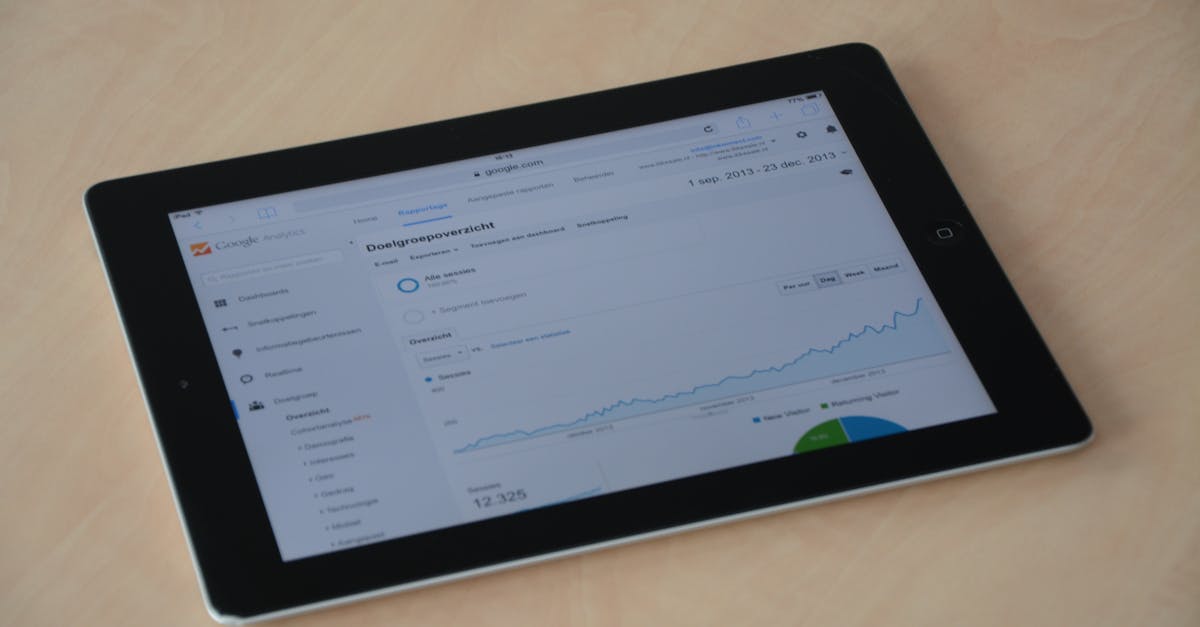
Here is the configuration that earns its keep: a GA4 property with Search Console integration, key event tracking on contact form submissions, and a custom Exploration report filtering organic sessions by landing page and conversion. The finding this setup most often surfaces is an uncomfortable one — a blog generating the majority of organic sessions but a tiny fraction of enquiry conversions. That is not a reason to stop blogging; it is a signal to add contextual CTAs and internal links from the top-performing posts to service pages, which is consistently among the highest-leverage conversion fixes available because the traffic is already there.
This guide is a practical walkthrough of using GA4 specifically for SEO. It assumes you have GA4 installed and data flowing, and focuses on the reports and configurations that deliver the most SEO value.
First: Connect GA4 to Google Search Console
Linking GA4 to Search Console is the single most important step — without it, you have traffic data but no keyword visibility. GA4 alone shows organic sessions, users, and conversions from the organic channel, but not the search queries, keywords, or specific positions that generated that traffic. Google Search Console holds the query data that GA4 does not have natively. Ahrefs' GA4 SEO guide identifies this integration as the first action every site owner should take after installing GA4.
How to Connect
- In Google Search Console, navigate to Settings → Associations
- Click Add association and select Google Analytics
- Select your GA4 property and confirm
Alternatively, in GA4:
- Go to Admin → Property → Property Settings → Product Links
- Click Search Console Links
- Follow the wizard to link your verified Search Console property
The integration typically takes 24–48 hours to begin populating data. Once connected, you gain access to the Search Console reports within GA4 (under Reports → Acquisition → Search Console), which show:
- Queries: which search terms drive traffic to your site
- Landing pages: which pages receive organic search traffic, with their query context
- Countries: geographic breakdown of organic search traffic
- Devices: organic traffic by device type
This query-level data is essential for understanding which content is actually driving traffic, and for identifying the gap between what users search for and what pages they land on.
Our Google Search Console guide covers GSC itself in depth — it is worth reading alongside this guide because GSC and GA4 together give you a complete picture of organic search performance.
Understanding GA4's Data Model for SEO
GA4 treats every interaction as an event rather than grouping them into sessions — a fundamental shift that enables more granular SEO analysis. Before diving into reports, it helps to understand how GA4 thinks about data differently from UA.
Events, Not Sessions
Every user interaction in GA4 is an event, giving you far more flexibility in how you measure content performance. In UA, the fundamental unit of measurement was the session — a group of interactions by a single user within a time window. Page views, events, and transactions were all attributes of a session.
In GA4, everything is an event. A page view is an event (page_view). A scroll is an event (scroll). A click on an outbound link is an event (click). A form submission is an event (custom or form_submit). A conversion is an event marked as a key event.
For SEO analysis, this matters because you can now analyse how users from organic search interact with your content in much more granular ways — not just whether they viewed a page, but how far they scrolled, what they clicked, and whether they completed a goal.
Users: Device ID vs. User ID
GA4 uses a cross-platform identity model. By default, it tracks users across sessions using device IDs (cookies on web, device identifiers on app). If you implement User ID (assigning a consistent identifier to logged-in users), GA4 can track the same person across devices.
For most small business SEO analysis, the default device-based tracking is sufficient. The user ID implementation becomes valuable for SaaS businesses or e-commerce sites where the same customer might visit from multiple devices before converting.
Key Events (Formerly Conversions)
In UA, conversions were called "goals." In GA4, they are called "key events." You mark specific events as key events to tell GA4 these are the actions you care most about. Common SEO-relevant key events:
- Form submissions: contact enquiries, quote requests
- Phone call clicks: tracking tel: link clicks
- Newsletter signups
- Purchases (for e-commerce)
- PDF downloads or whitepaper requests
Configure key events that align with your actual business goals. Without them, GA4 shows you traffic but not outcomes — you cannot measure whether your SEO investment is generating leads or sales.
The Essential GA4 Reports for SEO
The table below summarises the GA4 reports most useful for SEO analysis, what each one tells you, and where to find it. Google's Analytics Help centre provides full documentation for each report.
| Report | Navigation Path | What It Shows for SEO | When to Use It |
|---|---|---|---|
| Acquisition Overview | Reports > Acquisition > Overview | Organic vs. paid vs. direct traffic split | Monthly channel performance review |
| Search Console: Queries | Reports > Acquisition > Search Console > Queries | Keywords driving impressions and clicks | Identifying high-impression, low-CTR opportunities |
| Search Console: Landing Pages | Reports > Acquisition > Search Console > Landing page | Per-page organic performance with query context | Prioritising content updates and meta improvements |
| Pages and Screens | Reports > Engagement > Pages and screens | Engagement time, views, events per page | Measuring content quality and user retention |
| Explore: Free-form | Explore > Free-form | Custom dimensions + metrics with filters | Organic conversion analysis by landing page |
| Explore: Path | Explore > Path exploration | User journey sequences after organic landing | Understanding post-landing navigation patterns |
| Attribution | Advertising > Attribution > Model comparison | Organic search role in multi-touch journeys | Measuring SEO's contribution to conversions |
1. Acquisition Overview: Organic vs. Other Channels
Navigate to Reports → Acquisition → Overview. This shows your traffic by channel, including Organic Search.
What to look for:
- Is organic search growing as a share of total traffic over time?
- How does organic compare to direct, referral, and paid channels?
- Are there seasonal patterns in organic traffic that align with your business cycle?
Set a date comparison (e.g. last 3 months vs. the same period a year ago) to see year-on-year organic growth rather than month-on-month fluctuations, which can be misleading for seasonal businesses.
2. Search Console: Queries
Navigate to Reports → Acquisition → Search Console → Queries.
This is the closest equivalent to the old UA landing pages + keyword data, showing:
| Metric | What It Tells You |
|---|---|
| Impressions | How often your pages appeared in Google search results for this query |
| Clicks | How many users clicked through to your site |
| CTR | Click-through rate — what percentage of impressions resulted in a click |
| Average Position | Your average ranking position for this query |
Practical uses:
High impression, low CTR: Your page ranks but users are not clicking. This usually means your title tag or meta description is not compelling enough for the query intent. Improve these and watch CTR improve.
Low impression, ranking position 8–15: You are close to the first page. These keywords deserve content investment — improving the page quality could push them into the top five, where clicks increase dramatically.
High CTR queries: These queries are resonating with users. Ensure the landing pages they reach are optimised to convert or retain those visitors.
3. Search Console: Landing Pages
Navigate to Reports → Acquisition → Search Console → Google organic search landing page.
This shows which pages on your site receive organic search traffic, with the same impression/click/CTR/position data. Crucial for identifying:
- Which pages are performing well organically (protect and extend these)
- Which pages have high impressions but low clicks (prioritise meta improvements here)
- Which pages rank well but convert poorly (check the on-page experience and CTAs)
4. Pages and Screens: Engagement Metrics for SEO Pages
Navigate to Reports → Engagement → Pages and screens.
Filter to organic traffic only by adding a comparison or segment (see Exploration reports for more powerful filtering). This shows, for each page:
- Views: total page views
- Users: unique users who viewed the page
- Average engagement time: replaces the old "average time on page" but works differently — it measures active engagement, not just time the tab was open
- Engaged sessions: sessions where users spent more than 10 seconds, had a conversion event, or viewed more than one page
- Events per session: how interactive the page is
For SEO, average engagement time is a proxy for content quality. If users from organic search spend 8 minutes on your guide to boiler installation but 30 seconds on your blog post about bathroom trends, the guide is doing its job and the blog post needs work.
5. Explore: Custom SEO Funnels and Path Analysis
The Explore section (formerly Analysis Hub in early GA4 versions) is where GA4's real power lives. It is less accessible than the standard reports but essential for deeper SEO analysis.
Free-form exploration: Build a custom report with any combination of dimensions and metrics. For SEO, a useful starting exploration is:
- Dimensions: Landing page, Session source, Session medium
- Metrics: Sessions, Engaged sessions, Key events (conversions), Revenue (if applicable)
- Filters: Session medium exactly matches "organic"
This shows you, for every page that receives organic traffic, how many sessions it generates and how many of those convert. The pages with high organic sessions but very low conversions deserve attention — either the content is attracting the wrong search intent, or the page experience is failing to capitalise on the traffic.
Path exploration: Shows the sequences of pages users navigate through on your site. For SEO, use this to understand what users do after landing on a page from organic search. Do they move deeper into the site (good) or leave immediately (bad)? If they leave, which page is the exit point, and what can you improve about it?
Setting Up SEO-Specific Segments in GA4
Segments allow you to filter your analysis to specific subsets of users or sessions. For SEO, the most useful segments are:
Organic search segment: Users who arrived via organic search. Create this in Explore by setting Session source/medium to contain "google / organic" (or all organic sources if you get Bing and other organic traffic).
New vs. returning from organic: Are your blog posts primarily attracting new users (top-of-funnel) or bringing back repeat readers (community building)? Different content strategies serve different goals.
Organic + Converted: Users who arrived from organic search and completed a key event. This is your measure of SEO ROI — how many enquiries, purchases, or signups can you attribute to organic search?
Measuring SEO ROI with GA4
Measuring the return on your SEO investment is the question clients and business owners care most about. GA4 provides the data to answer it, but you need to configure it correctly.
Step 1: Define Your Key Events
As above, mark the actions that represent value to your business as key events. For a service business, this typically means contact form submissions and phone call clicks as a minimum.
Step 2: Assign Event Values (Optional but Powerful)
If you know the average value of an enquiry (e.g. your average job value is £800 and you convert 25% of enquiries, so each enquiry is worth approximately £200), you can assign this value to your conversion event. GA4 will then report the total conversion value attributed to each channel, including organic search.
Step 3: Use Attribution Comparison
GA4's attribution model defaults to data-driven attribution, which distributes credit for a conversion across multiple touchpoints in the path to conversion. You can compare this to last-click attribution to understand whether organic search is an early-journey or late-journey channel for your business. If organic search is consistently in the early touchpoints of converting users' journeys, its value is underrepresented by last-click attribution — a useful insight for budget allocation conversations.
Our SEO ROI measurement guide covers the financial attribution side of this in more detail, including how to build a simple ROI model from GA4 data.
Common GA4 Mistakes to Avoid
Comparing GA4 Data to UA Data Directly
GA4 and Universal Analytics use different data collection methods. Sessions in GA4 are not counted the same way as sessions in UA. Bounce rate in UA is not the same as bounce rate in GA4 (GA4 replaced it with engagement rate). Do not compare UA historical data to GA4 current data as if they are the same measurement.
Ignoring the Engagement Rate vs. Bounce Rate Distinction
UA's bounce rate measured the percentage of sessions with only one page view. GA4's engagement rate (the inverse: engaged sessions / total sessions) is more useful — it considers whether users actively engaged with the content even on single-page visits. A user who spends 5 minutes reading one blog post is "bounced" in UA but "engaged" in GA4.
For SEO, this is relevant because blog and guide content often has high UA bounce rates but high GA4 engagement rates — the old metric was penalising single-page content experiences unfairly.
Not Accounting for Sampling
GA4 applies data sampling in Explore reports when queries cover large datasets. Sampled data is an approximation, not the full picture. Look for the sampling indicator (a shield icon near the report name). For critical analyses, reduce the date range or increase specificity of the query to reduce sampling.
Treating All Organic Traffic as Equal
Not all organic traffic has the same commercial value. A user searching for a branded query ("rnkrocket pricing") is much further along the purchase journey than a user searching for an informational query ("what is rank tracking"). Segment organic traffic by landing page and query type to understand the commercial value of different content.
Frequently Asked Questions
What happened to bounce rate in GA4?
Bounce rate was replaced by engagement rate, which is defined as (engaged sessions / total sessions) × 100. An engaged session is one that lasted longer than 10 seconds, included a conversion event, or included two or more page views. Bounce rate still exists in GA4 but is hidden by default — it is the inverse of engagement rate. Most SEOs now use engagement rate as the primary content quality metric, which is generally a more useful signal for content-heavy sites.
How do I see which keywords bring traffic to specific pages?
Use the Search Console integration in GA4. Navigate to Reports → Acquisition → Search Console → Google organic search landing page. Set the primary dimension to "Landing page" and the secondary dimension to "Query." This shows you, for each page, which queries drove the most impressions and clicks. Alternatively, use the Queries report and filter by landing page.
Can I track phone calls in GA4?
Yes, but it requires additional configuration. If you use a click-to-call phone number (a tel: link), you can track clicks on that link as a GA4 event using Google Tag Manager. Set up a Tag Manager trigger for clicks on links containing "tel:" and fire a GA4 event tag with the event name "phone_call_click." Mark this event as a key event in GA4 admin. For more advanced call tracking (tracking calls that resulted from users seeing your phone number in search results, not clicking), you need a call tracking platform like CallRail that generates dynamic phone numbers.
Is GA4 free?
The standard GA4 property is free. GA4 360, the enterprise version with higher data limits, unsampled reports, and advanced features, is a paid subscription aimed at large enterprises. For small and medium businesses, the free version is more than sufficient.
What is the difference between GA4 and Google Search Console for SEO?
They measure different things. Google Search Console measures what happens in Google Search before a user clicks: impressions, queries, average ranking position, CTR. GA4 measures what happens after a user arrives at your site: pages visited, time spent, conversions, user journeys. For a complete SEO picture, you need both. The GA4 Search Console integration bridges the gap by showing GSC data within the GA4 interface, linked to GA4's on-site behaviour data.
Related Reading
- Google Search Console: A Complete Guide for Small Businesses
- Measuring SEO ROI: A Guide for Small Business Owners
- What Is SEO? A Beginner's Guide to Search Engine Optimisation
RnkRocket tracks your organic rankings and site health in real time, complementing GA4's behavioural data with the search visibility picture — so you always know both where you stand in search and how that traffic is performing on your site. See pricing plans and get started from £9.95/month →